Change the Date in an Image

A new date. The design you already have. Update an event poster, invitation, or schedule without the original design file.

Edit the date people see in your image — not its EXIF capture time.

  • Up to 3 text changes. One edit.
  • 1 free edit on sign-up
  • No credit card needed

or drag & drop your image here

Paste from clipboard · PNG, JPG, WebP up to 10 MB

No image on hand? Try an example:

By uploading, you agree to our Terms and Privacy Policy. We don’t publish your images. Edit only images you have the right to use.

Real edits. Same design, new date.

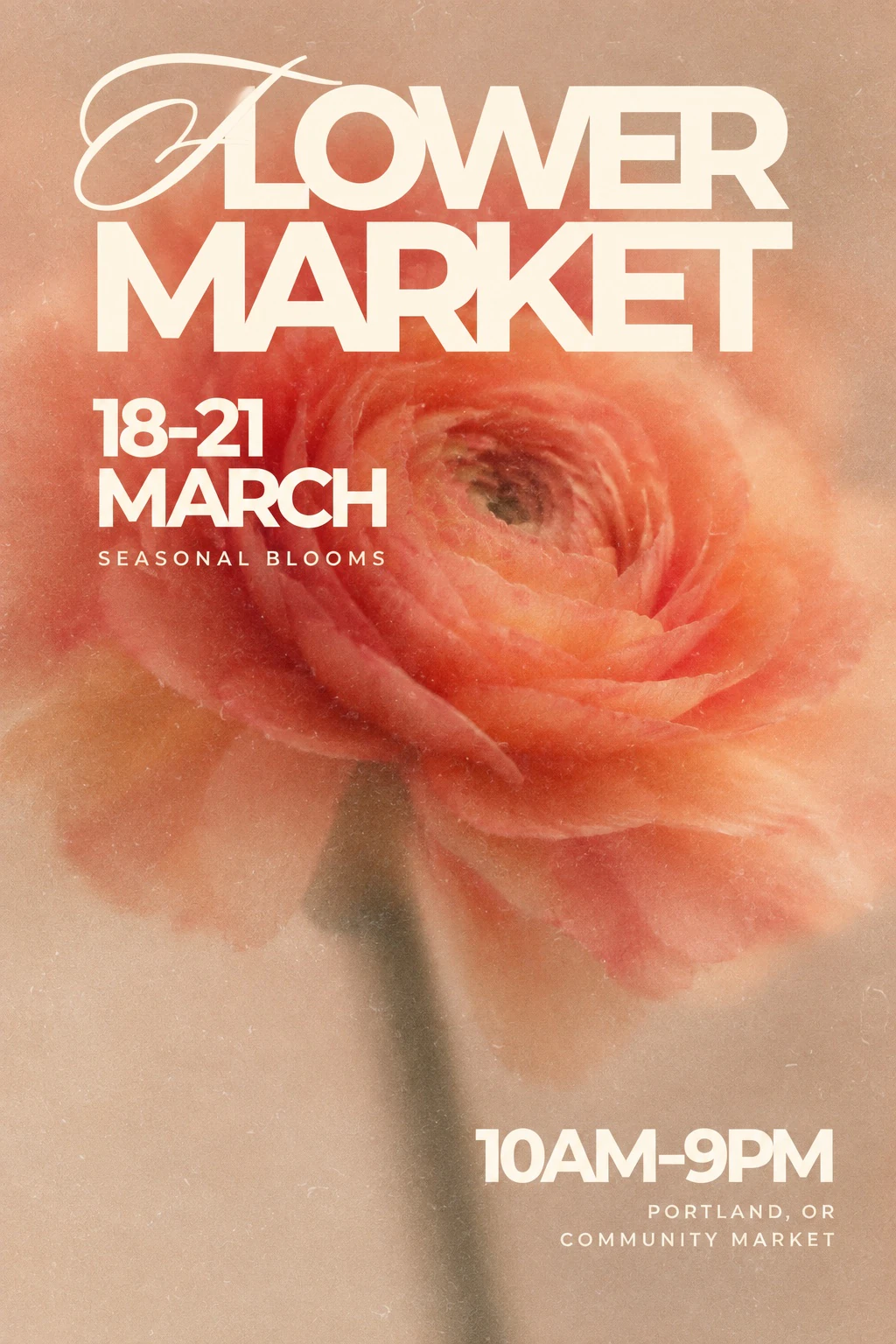
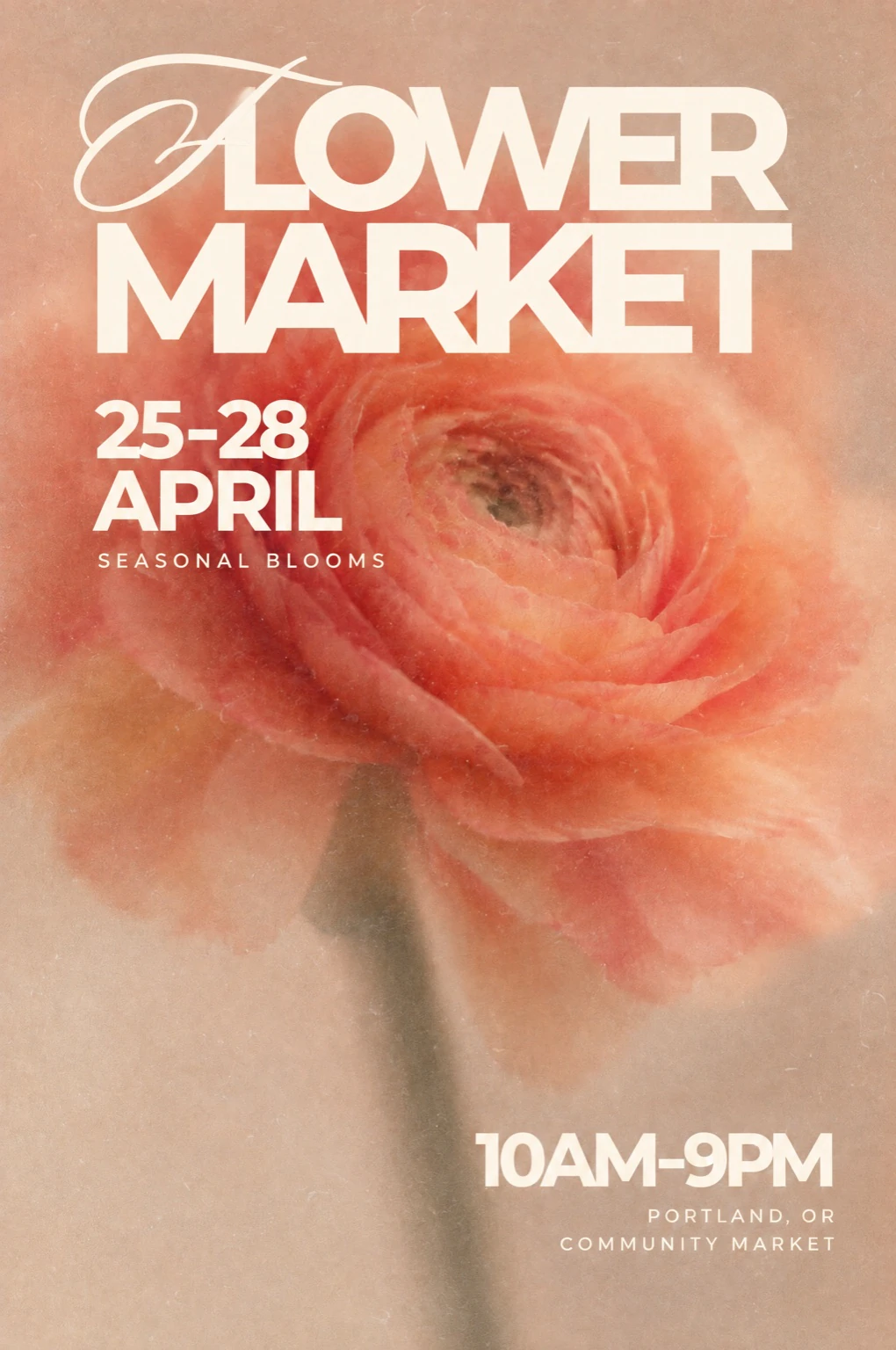
Two demo designs, edited in Picivo—one date range on a poster, three dates in a single edit. Compare each pair to see what changed and what stayed around it.

Flower market poster showing 18–21 MARCH.
Original image
Edited flower market poster showing 25–28 APRIL.
Edited result

Move a flower market to new dates

Change a date range and month over a textured floral background. Compare the lettering, spacing, and surrounding petals.

Text changes

  • 18–21 MARCH25–28 APRIL

Edited in Picivo · 1 generation, no retries · Exported at up to 2K
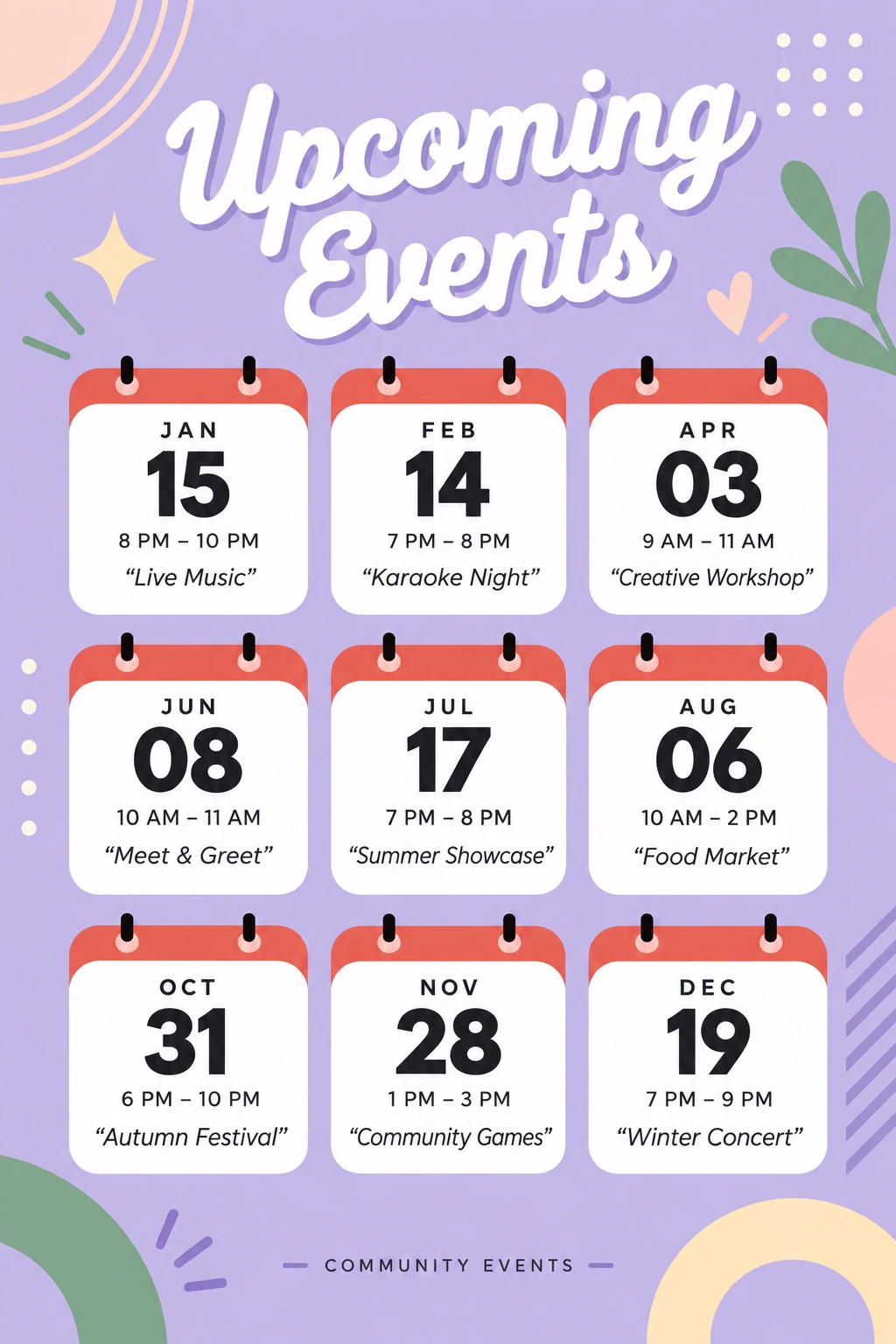
Nine event cards with JAN 15, APR 03, and DEC 19 among the dates.
Original image
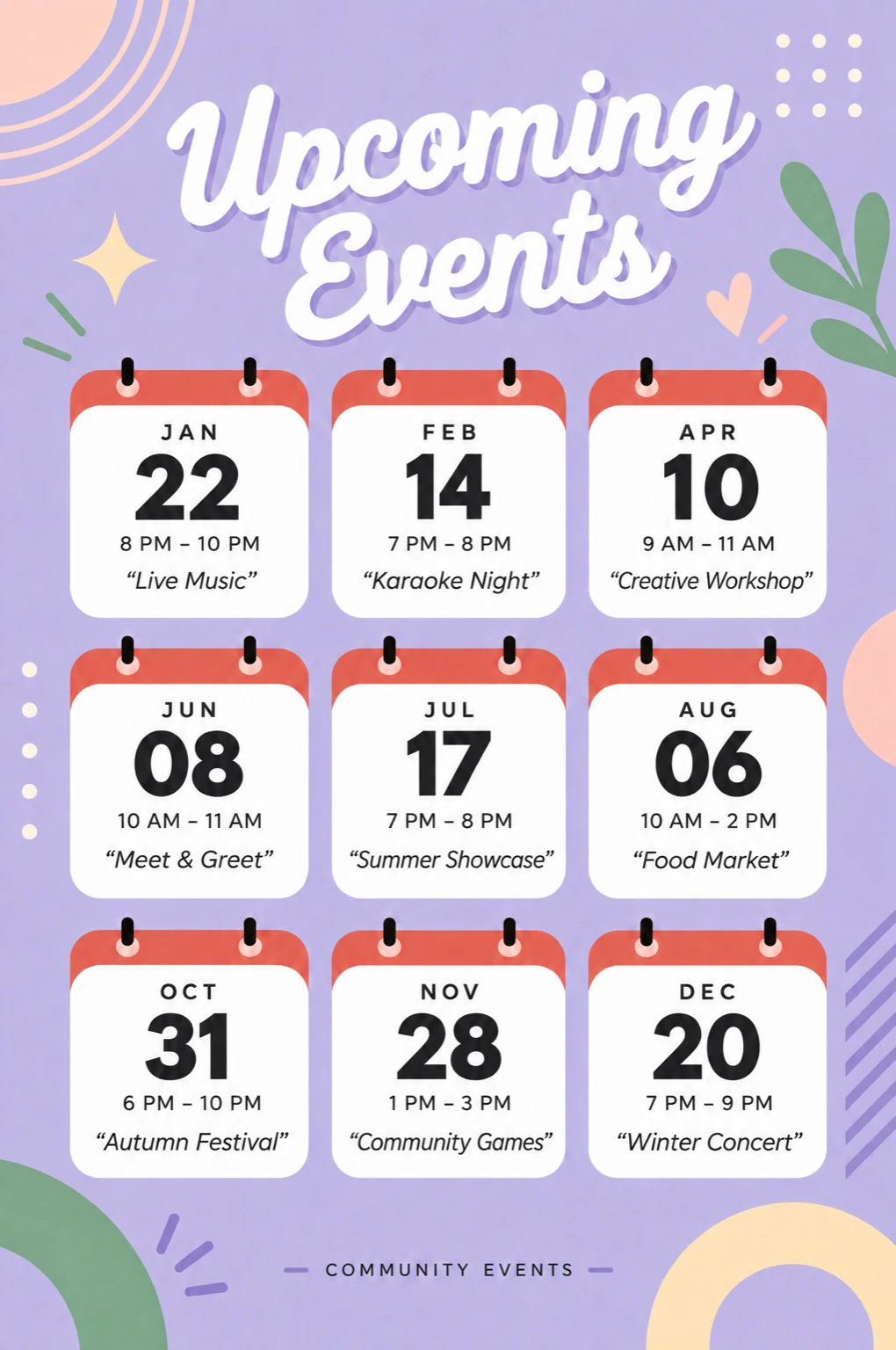
Edited schedule with JAN 22, APR 10, and DEC 20; six other dates unchanged.
Edited result

Reschedule three events in one image

Update the January, April, and December dates together. The other six event cards keep their original dates.

Text changes

  • JAN 15JAN 22
  • APR 03APR 10
  • DEC 19DEC 20

Edited in Picivo · 1 generation, no retries · Exported at up to 2K
How to change a date in an image

  1. Upload your finished image

    Start with a JPG, PNG, or WebP where the date is readable. You do not need a layered design file.

  2. Enter the old date and the new date

    Copy the existing date as it appears, then type the replacement with the month, year, and punctuation you want. Add changes to the time or venue if needed — up to 3 text changes in one edit.

  3. Review, then download

    Generate the image—the AI re-renders it with the new date in place, matched to the original lettering. Compare it with the original: check every digit, the weekday, spacing, and the surrounding text before sharing.

A quick check before you share

  • Make the whole date agree

    If the day changes, check the weekday and year too. Written month names can help avoid confusion between day/month and month/day formats.

  • Give the new date room

    A longer month or date range may need more space. Check the lettering, alignment, and nearby artwork at full size.

  • Compare more than the date

    Small text, blurry images, and intricate lettering can be harder to match. Review the rest of the poster for unintended changes. Matching the style does not guarantee an identical font.

Want a closer match to the original lettering? Explore same-font editing

Questions about changing dates

Yes. Picivo works with the text already visible in a JPG, PNG, or WebP. If you still have an editable original, editing that file directly may give you more precise control.

Got a new date? Upload your image.

or drag & drop your image here

Paste from clipboard · PNG, JPG, WebP up to 10 MB

No image on hand? Try an example:

By uploading, you agree to our Terms and Privacy Policy. We don’t publish your images. Edit only images you have the right to use.